
PDF to Flipbook: The Complete Guide to Converting Your PDF
Last updated October 27, 2026
To convert a PDF to a flipbook, upload the PDF to a flipbook converter such as Instant Flipbook. It turns every page into an HTML5 page-turning flipbook in about a minute. Then adjust the settings, check the links, and publish the flipbook on your website, as a link, or as an embed.
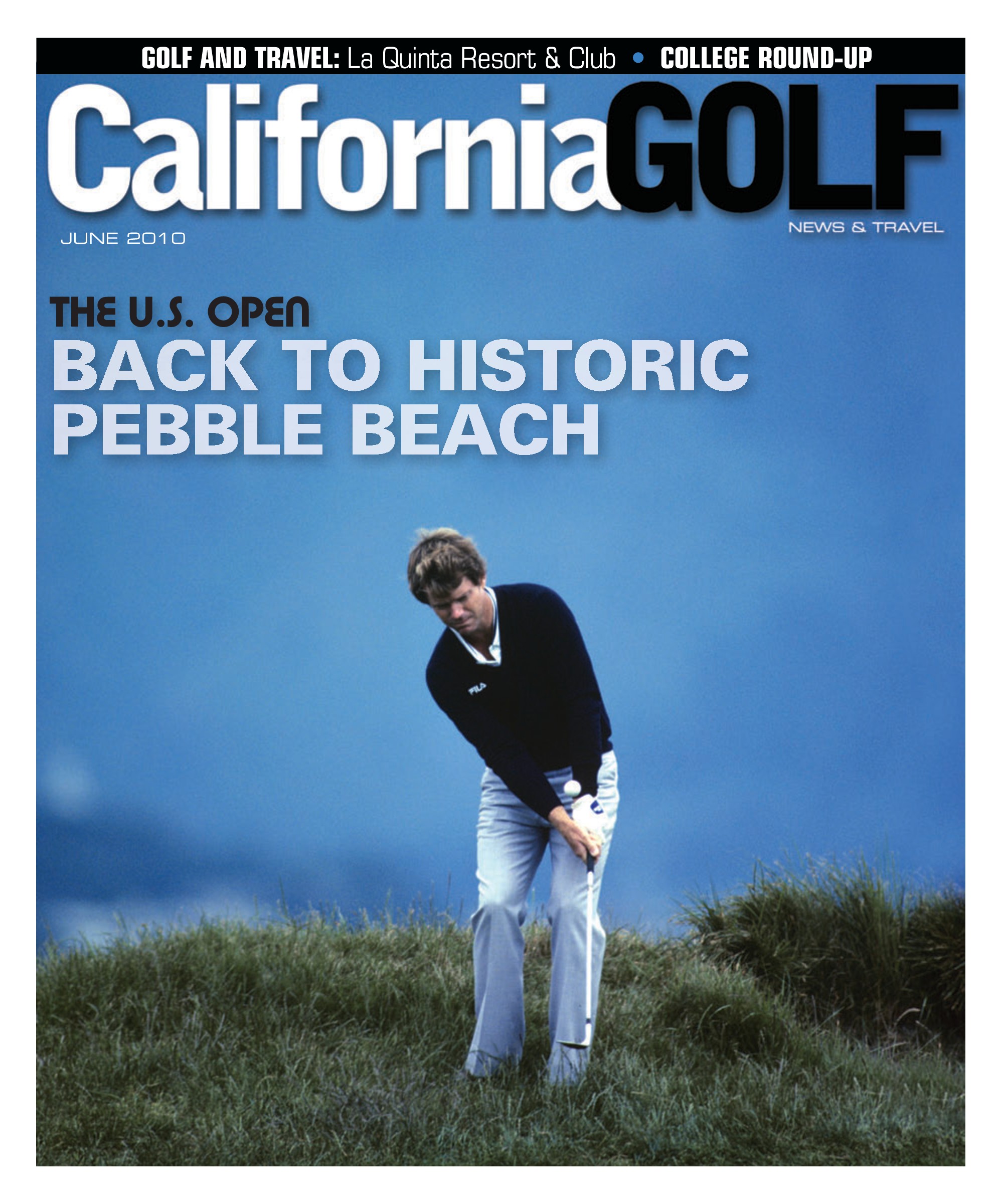


This guide covers the whole process: why you would convert a PDF at all, how to prepare the file so the result looks sharp and loads fast, the conversion itself, the settings worth changing, and the different ways to publish. At the end you will find fixes for the most common problems.
Why convert a PDF to a flipbook?
A PDF is made for printing. Online it has to be downloaded or opened in a separate viewer, it is awkward to read on a phone, and once it has been sent you have no idea whether anyone read it. A flipbook is the same document, built for the web:
- It opens instantly in the browser, on any device, with nothing to download.
- It reads like the printed version, with realistic page turns, spreads, and covers.
- It is interactive: links, email addresses, embedded video, search, and zoom.
- It is a web page, so you can link to it, embed it, put it behind a QR code, and measure visits in your analytics.
The content does not change. You keep designing in the tool you already use, and the flipbook is simply a better way to publish the result online.
Step 1: Prepare your PDF
Most flipbook problems start with the PDF. Five minutes of preparation saves a lot of trial and error.
Use screen resolution, not print resolution
Print PDFs often contain 300 DPI images, crop marks, and bleed. On screen, 72 to 150 DPI is plenty. A lighter file converts faster and, more importantly, the flipbook loads faster for your readers. In InDesign, choose the Smallest File Size or High Quality Print preset rather than Press Quality, and turn off crop marks and bleed. In Canva, choose PDF Standard.
Single pages or spreads?
Export single pages. The flipbook puts pages side by side as spreads on desktop and shows one page at a time on phones. If you export spreads, a two-page spread becomes one wide page, and the layout breaks on mobile. The cover should be page 1 on its own, just like in print.
Check the page order and count
The flipbook follows the page order of the PDF. Make sure inside covers, blank pages, and the back cover are where you want them. An even number of pages gives the cleanest final spread.
Keep text readable
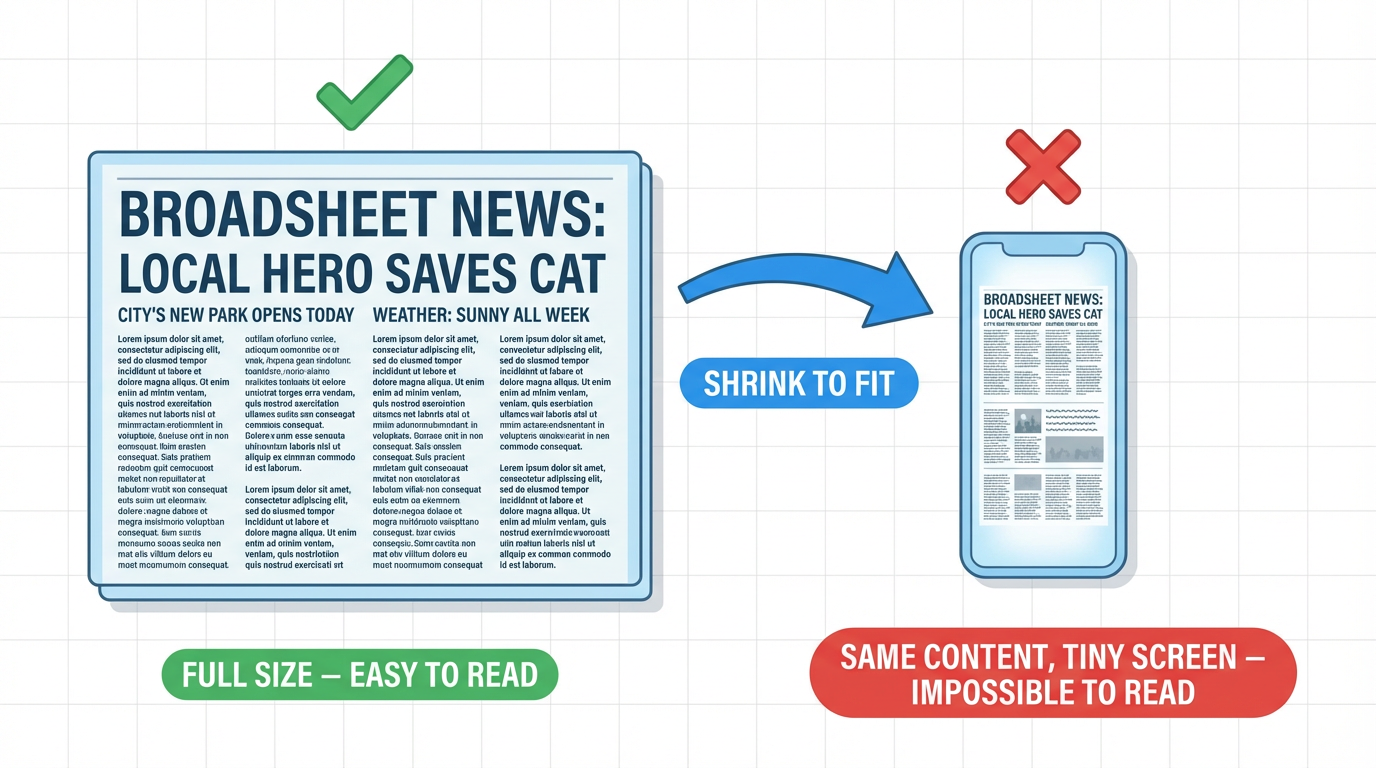
Text that is comfortable on A4 paper can be small on a phone. For publications that will be read mostly on mobile, use body text of at least 10 to 11 pt and avoid very thin fonts on busy backgrounds.
Add your links in the PDF
Links you add in your design tool (web addresses, email addresses, and links to other pages) are carried over to the flipbook automatically. It is usually quickest to add them while designing, then fine-tune afterwards in the flipbook's link editor.
Step 2: Convert the PDF
- Upload the PDF. On the Instant Flipbook homepage, click Try For Free and select your file. PDFs of up to 325 MB are supported.
- Wait about a minute. Each page is rendered as a sharp image, the text is extracted so it can be searched, and the links are detected.
- Preview the flipbook. Flip through it on your computer and, ideally, on your phone too. Check that the page order, spreads, and links are right.
You can convert and preview for free. When you are happy with the result, a one-time payment per flipbook lets you download the files and host them yourself. There is no subscription.
Step 3: Adjust the settings that matter
The defaults work for most publications, but these settings are worth a look:
- Title: shown in the browser tab and when the link is shared on social media. Use the real name of the publication, such as "Spring Catalog 2027", not the file name.
- Image quality: higher quality gives sharper photos but larger files. For text-heavy documents read on phones, a slightly lower setting can make text cleaner and pages faster.
- Colors and background: set the background color or upload a background image, and match the control bar to your brand. Or apply a theme in one click.
- Buttons: choose which controls readers see, such as search, thumbnails, fullscreen, print, and PDF download.
- Start on page and auto flip: useful for kiosks, trade-show screens, and presentations.
- Page flip speed and sound: subtle, but they make the flipbook feel like paper. You can also add audio.
- Google Analytics: enter your GA4 measurement ID to track opens, page views, and time per page. See flipbook analytics in Google Analytics.
Step 4: Add interactivity
A converted PDF already keeps its links. In the link editor you can go further:
- Draw a link over any area, such as a product photo, a logo, or a button in your design.
- Link to another page inside the flipbook, for example from a table of contents.
- Add
mailto:links for email addresses. - Embed YouTube or Vimeo videos directly on a page.
Step 5: Publish your flipbook
After purchase you download a ZIP file with the complete flipbook: an index.html file, the viewer files, and the page images, plus a readme with instructions. From there you have several options:
| Option | How | Best for |
|---|---|---|
| Your own website | Upload the folder to your web server, for example to /catalog/. See uploading a flipbook to your website. | Everything. All traffic and SEO value stays on your domain. |
| Embed on a page | Place the flipbook in any page with an iframe. Use the embed code generator or follow the WordPress guide. | Product pages, landing pages, and news posts. |
| Link, email, QR code | Share the URL of the flipbook folder in emails and on social media, or turn it into a QR code. | Newsletters, print, and events. |
| Offline | Copy the folder to a USB stick, laptop, or kiosk. See offline flipbooks. | Trade shows and places without Wi-Fi. |
Tip: you can link directly to a page by adding ?page= to the address, for example https://yourwebsite.com/catalog/?page=12.
Self-hosted or hosted on a platform?
Many PDF to flipbook converters host your flipbook on their own website. That is quick, but the link points to their domain, they may show their branding or other publications next to yours, and the flipbook usually goes offline when you stop paying. A self-hosted flipbook lives on your website: your domain collects the visits and the links, your brand is the only one on the page, and the files keep working without a subscription. Instant Flipbook is built around self-hosting for exactly that reason.
Troubleshooting
Text looks blurry or small
Readers can use zoom and fullscreen, but if text is hard to read on phones, try a lower image quality setting (this often makes text crisper on small screens) or increase the font size in the source document. Avoid exporting text as an image from your design tool.
The flipbook loads slowly
The quality setting is probably too high, or the PDF contains print-resolution images. Lower the image quality in the settings, or re-export the PDF with 72 to 150 DPI images.
Pages are in the wrong order or spreads look odd
Re-export the PDF as single pages in reading order, with the cover as page 1, and convert again.
Some links are missing
Links that were only styled text in the design (blue and underlined, but not real hyperlinks) are not links in the PDF. Add them in the link editor, or create them as real hyperlinks in your design tool before exporting.
The file is too large to upload
The upload limit is 325 MB. A file that large is almost always print quality. Re-export with screen-resolution images, or contact us and we will help.
Frequently asked questions
Flipbooks for
- Digital Magazines
- Digital Brochures
- Digital Catalogs
- Digital Menus
- Real Estate Brochures
- Digital Lookbooks
- Annual Reports
- Digital Newsletters
- HTML5 Flipbooks
Businesses use Instant Flipbook















Ready to create your flipbook?
Upload a PDF and get an interactive flipbook within minutes. Completely free to try.